You clicked "Update" on a plugin or WordPress core, and now every page on your site — front end and wp-admin — shows one line: "Briefly unavailable for scheduled maintenance. Check back in a minute." Except a minute has turned into ten, then an hour, and the site still won't come back. This is one of the most common WordPress update failures, and it's almost always a two-minute fix once you know where to look.
Why This Happens
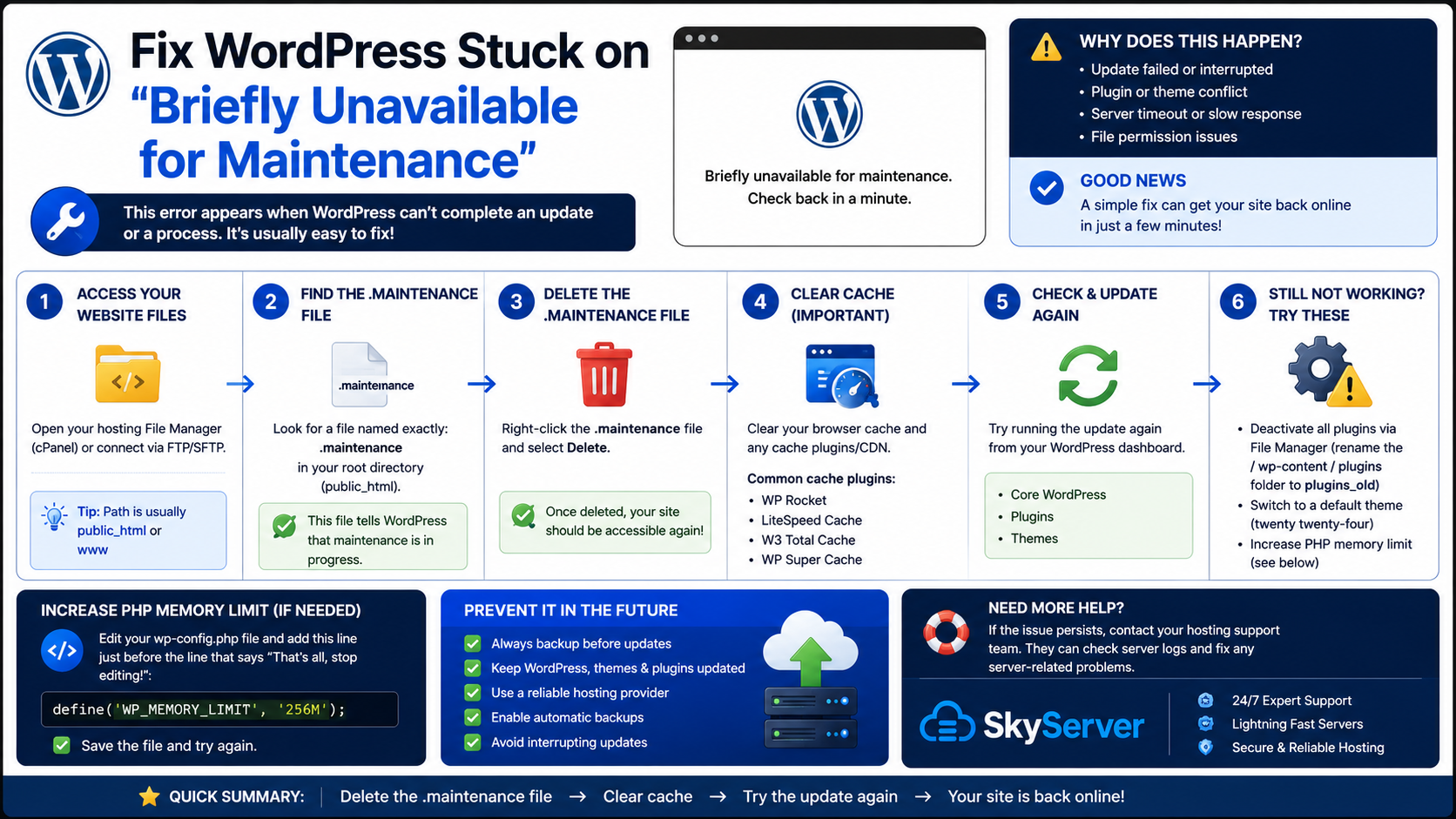
When you run an update — core, plugin, or theme — WordPress creates a tiny file called .maintenance in your site's root folder. It's a safety flag that tells WordPress "an update is in progress, show visitors a holding message instead of a half-updated site." Once the update finishes, WordPress deletes that file automatically and the site goes back to normal.
The problem is what happens when the update doesn't finish cleanly:
- The update process hit a PHP timeout on a slow or shared server
- Your connection dropped or the browser tab closed mid-update
- A plugin update conflicted with another plugin and the process crashed
- Low memory (PHP memory_limit) killed the script halfway through
- Two updates ran at the same time — one manual, one from a cron-based auto-update
In every one of these cases, WordPress never got to the step where it deletes .maintenance. The file just sits there, and WordPress keeps honoring it forever — even though there's no update actually running anymore.
The Fix: Delete the .maintenance File
This is safe to do almost every time, because by the time you're reading this, the update process is already dead. You're not interrupting anything — you're just clearing a leftover flag.
Option 1: File Manager in cPanel
- Log in to cPanel and open File Manager
- Navigate to
public_html(or your WordPress root folder, if it's in a subfolder) - Make sure Show Hidden Files is enabled — click Settings (top right) and check the box, since
.maintenancestarts with a dot and is hidden by default - Find
.maintenancein the file list and delete it - Reload your site — it should load normally right away
Option 2: SSH / Terminal
If you have shell access, this is faster:
cd /home/username/public_html
rm .maintenance
Replace the path with your actual site root. Reload the site — done.
Option 3: FTP/SFTP
Connect with FileZilla or your preferred client, enable "Show hidden files" in the client settings, browse to your WordPress root, and delete .maintenance the same way.
After You Remove It, Check the Update Actually Finished
Deleting the file gets the site back online, but it doesn't guarantee the update itself completed properly. Do a quick pass:
- Go to Dashboard → Updates and see if the plugin/theme/core version shows as current
- If a plugin update was interrupted, deactivate and reactivate that plugin, or re-run the update from the Plugins page
- Check Plugins → Installed Plugins for anything marked "broken" or missing files
- Look at your error log (
wp-content/debug.log, or Errors section in cPanel) for fatal errors from the plugin that was mid-update
If a plugin's files got left in a half-written state, the safest move is to delete that plugin's folder via File Manager and reinstall it fresh from the WordPress repo or your license portal, rather than trying to patch a partial install.
Preventing This From Happening Again
You can't eliminate every failed update, but you can make them much less likely to leave your site stuck:
| Cause | Prevention |
|---|---|
| PHP timeout on large updates | Ask your host to raise max_execution_time, or update plugins one at a time instead of bulk-updating everything at once |
| Low memory during update | Increase memory_limit in wp-config.php (e.g. define('WP_MEMORY_LIMIT', '256M');) |
| Connection drops mid-update | Avoid updating over an unstable connection; use WP-CLI over SSH for large updates instead of the browser |
| Auto-update and manual update collide | Disable auto-updates for plugins you update manually, so cron and your click don't run at the same time |
| No backup before major updates | Take a quick backup or snapshot before updating core or a major plugin version, so you can roll back instead of debugging live |
If you're on SkyServer hosting, our cPanel accounts include JetBackup snapshots, so you can restore to right before an update in a couple of clicks if one ever goes sideways badly enough that a simple .maintenance delete doesn't fully resolve things.
When It's Not Just the .maintenance File
Occasionally, removing the file brings the site back but you immediately see a white screen, a 500 error, or a fatal PHP error instead of your homepage. That means the update itself failed partway through writing files, not just the flag. In that case:
- Compare the plugin/theme folder's file count against a fresh download — missing files point to an interrupted write
- Re-upload the plugin or theme folder fresh via FTP or File Manager, overwriting the partial one
- If it's a core update that failed, re-run Dashboard → Updates → Re-install Now, which safely overwrites core files without touching your content or plugins
Frequently Asked Questions
Is it safe to just delete the .maintenance file?
Yes, in the overwhelming majority of cases. WordPress uses it purely as a temporary flag during updates. If your site has been stuck on the maintenance message for more than a few minutes, the actual update process has already stopped running, so deleting the file just clears a leftover marker — it doesn't undo any changes.
I deleted the file but the message came back a minute later. Why?
Something is still triggering an update — usually a scheduled auto-update via WP-Cron. Check Settings → General for any pending auto-update jobs, or temporarily disable auto-updates under Dashboard → Updates while you sort out what's failing, then investigate why that specific update keeps timing out.
Can I prevent this by updating through WP-CLI instead of the browser?
Yes, and it's generally more reliable for large sites. WP-CLI updates run over SSH without a browser timeout limit, so they're less likely to get cut off mid-process. If you have shell access, wp core update or wp plugin update --all is worth using for bigger updates.
My whole multisite network is stuck on the maintenance message. Is the fix different?
No — the .maintenance file lives in the root of the WordPress install regardless of whether it's multisite, so deleting it fixes the entire network at once. You don't need to touch anything per-subsite.
Where exactly is the .maintenance file if I have WordPress in a subfolder?
It sits in the same folder as your wp-config.php file. If WordPress is installed at public_html/blog rather than public_html directly, look for .maintenance inside that blog folder, not in the account root.