New hosting customer, five minutes in, and the question is always the same: "How do I get info@mydomain.com working?" Creating an email account in wordpress-missing-a-temporary-folder-upload-error" class="auto-link">cPanel takes under a minute, but the setup around it — quotas, webmail access, client configuration, catch-all traps — is where most support tickets actually come from. Here's how to do it properly the first time.
Symptom: Email Account Exists But Nothing Works Right
A few versions of this ticket land in our queue every week:
- The mailbox was created in cPanel, but Outlook or the iPhone Mail app won't connect — "cannot verify server identity" or a repeated password prompt.
- Mail is being received, but the account hit its storage quota and now bounces with "mailbox full" errors.
- A typo'd email address to the domain didn't bounce — it silently vanished into a catch-all nobody remembers setting up.
- The user can log into Webmail fine but the same credentials fail in their desktop mail app.
None of these are cPanel bugs. They're almost always a setup or configuration gap, and each has a specific fix.
Cause: Email Accounts Need More Than Just "Create"
Clicking Create in cPanel's Email Accounts tool makes the mailbox exist, but three things determine whether it actually works day to day: the quota you assign, the mail client settings you hand the user, and whatever catch-all or forwarder rules are sitting in the background. Miss any of the three and you get exactly the symptoms above.
Fix: Set Up the Mailbox Correctly, End to End
1. Create the Account With a Sane Quota
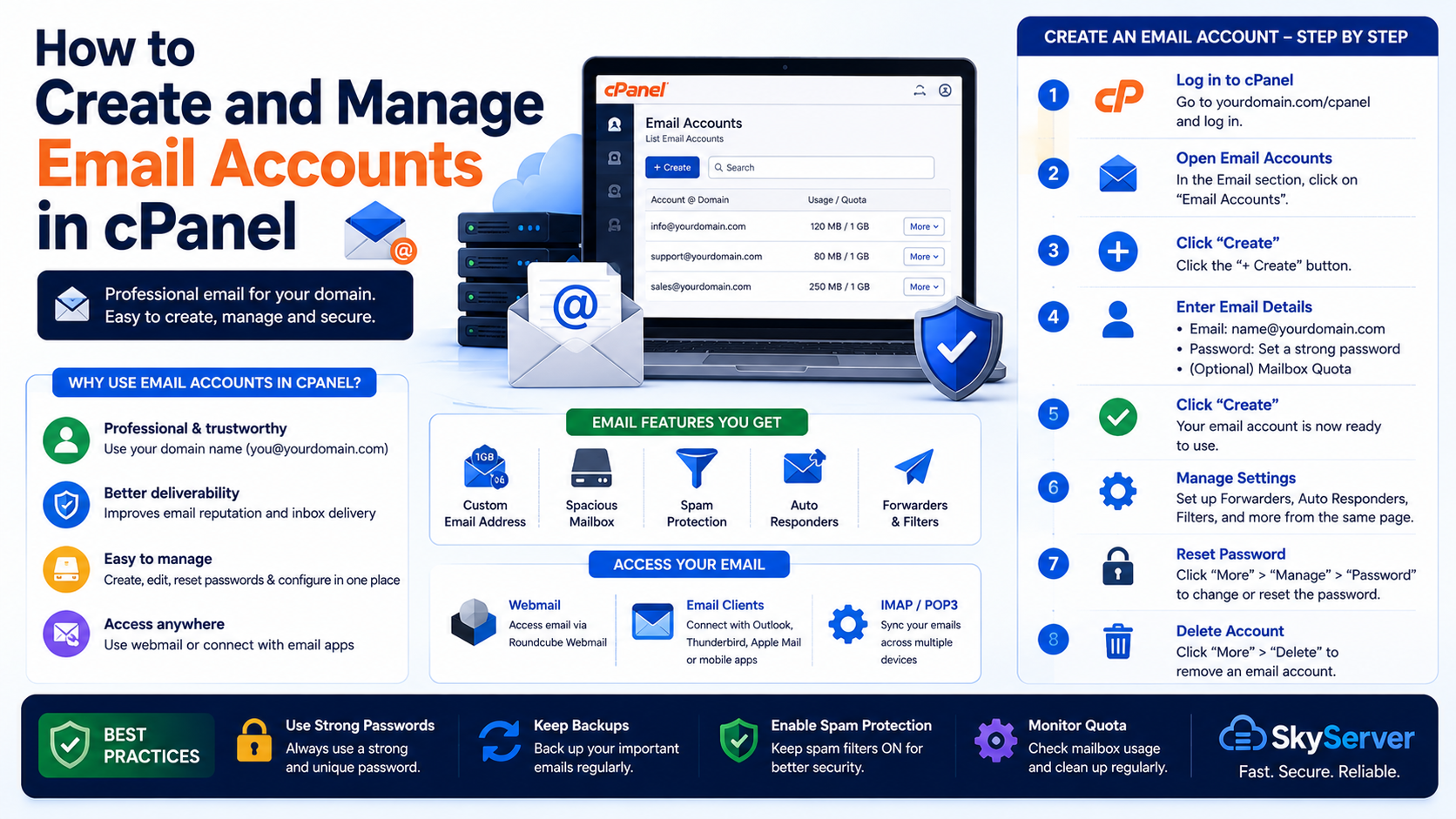
In cPanel, go to Email > Email Accounts > Create. Enter the username (the part before the @), pick the domain if your account hosts more than one, and set a password — use the built-in password generator rather than something the user picked, it saves a support ticket later.
For the quota, avoid two common mistakes:
- Unlimited sounds convenient but one runaway mailing list subscription or a spam flood can quietly eat your entire disk allocation and take other accounts on the package down with it.
- Too small (250MB is a common default) fills up fast once someone starts attaching PDFs and images, and a full mailbox rejects incoming mail with no obvious warning to the sender.
1-2GB per mailbox is a reasonable starting point for a small business account; adjust based on actual usage under Email > Email Accounts, where cPanel shows current usage against quota for every mailbox.
2. Check Usage and Bounces Before They Become Tickets
Under Email Accounts, the usage bar goes from green to red as a mailbox fills. If a client reports "email suddenly stopped arriving," this is the first place to look — a full mailbox rejects new mail at the SMTP level, and the sender usually gets a bounce like 552 mailbox full, but plenty of people never check for bounce messages.
You can also check Email > Track Delivery in cPanel to see the actual delivery attempts and rejection reasons for the last 30 days — far faster than guessing.
3. Configure the Mail Client With the Right Settings
Most "email doesn't work" tickets are really "email client is configured wrong" tickets. cPanel gives you the exact settings under Email Accounts > Connect Devices for the account in question, but the values are consistent across a shared hosting account:
| Setting | Value |
|---|---|
| Incoming server (IMAP) | mail.yourdomain.com, port 993 (SSL) |
| Incoming server (POP3) | mail.yourdomain.com, port 995 (SSL) |
| Outgoing server (SMTP) | mail.yourdomain.com, port 465 (SSL) or 587 (STARTTLS) |
| Username | full email address, e.g. info@yourdomain.com |
| Authentication | required, same password as the mailbox |
Use IMAP, not POP3, unless there's a specific reason not to. IMAP keeps mail synced across the server and every device; POP3 downloads and typically removes messages from the server, so the phone shows different mail than the laptop. That mismatch is one of the most common "where did my email go" tickets we see.
If the client shows "cannot verify server identity," it's almost always because the mail client was set to connect to mail.yourdomain.com before the domain's DNS finished pointing at your server, or the domain's SSL certificate for mail doesn't cover that hostname yet. Give AutoSSL a chance to issue the certificate (usually within an hour of the domain resolving correctly) and reconnect.
4. Use Webmail to Isolate the Problem
Before troubleshooting a desktop client, always log into Webmail directly at yourdomain.com/webmail (or via the Email Accounts > Check Email link in cPanel) with the same address and password. If Webmail works, the mailbox and password are fine and the problem is entirely in the client's connection settings. If Webmail also fails, the problem is the account itself — wrong password, suspended account, or a quota issue.
5. Know What a Catch-All Actually Does
Under Email > Default Address, cPanel lets you set a catch-all that captures any mail sent to a nonexistent address at your domain (a typo, an old address, a scraped-and-guessed address) and delivers it to one mailbox instead of bouncing it. This sounds handy but has a real downside: it's also the single easiest way to attract spam, since spammers routinely send to guessed addresses at every domain they find, and a catch-all quietly accepts all of it.
Unless there's a specific business reason to keep a catch-all (e.g. a rebranding where old addresses still get real mail), set Default Address to "Discard with error" instead. Bouncing invalid addresses back to the sender is more standard behavior and keeps a wildcard mailbox from filling up with junk.
6. Add Forwarders Instead of Sharing Passwords
If multiple people need to see mail sent to a shared address like sales@yourdomain.com, resist the urge to hand out one shared mailbox password. Use Email > Forwarders to forward a copy to each person's individual mailbox instead. It keeps an audit trail of who has access and avoids the classic problem of someone changing a shared password and locking out the rest of the team.
Prevention: A Short Checklist for New Mailboxes
- Set a realistic quota (1-2GB) instead of Unlimited or the tiny default.
- Hand the user the IMAP/SMTP settings table above, not just a password.
- Test in Webmail first whenever something "doesn't work" — it isolates client issues from server issues in ten seconds.
- Set Default Address to discard, not catch-all, unless you have a specific reason.
- Use forwarders for shared inboxes rather than shared passwords.
- Check Track Delivery before assuming a "missing email" report is a mystery.
Get these six things right when the mailbox is created and you'll rarely see a follow-up ticket about that address again.
Frequently Asked Questions
Why does my new email account work in Webmail but not in Outlook?
This almost always means the client is using the wrong port, the wrong encryption setting, or was configured before your domain's mail DNS (MX record) and SSL certificate were ready. Re-check the IMAP/SMTP settings table above and make sure you're using the full email address as the username.
Should I use POP3 or IMAP for a new mailbox?
Use IMAP in almost every case. It keeps the same mail folders in sync across webmail, phone, and desktop. POP3 downloads mail to one device and can remove it from the server, which is why people using POP3 across multiple devices often "lose" messages that are actually just sitting on a different device.
What happens when a mailbox hits its quota?
Incoming mail is rejected at the server level, usually with a bounce like 552 5.2.2 mailbox full sent back to whoever tried to email that address. The account owner won't see anything new arrive, and there's no in-cPanel alert by default, so it's worth checking usage under Email Accounts periodically for busy mailboxes.
Is a catch-all email address a good idea?
Generally no. It captures mail sent to typos and old addresses, which sounds useful, but it also captures every guessed address spammers throw at your domain. Most accounts are better off with Default Address set to "Discard with error" and specific addresses created only as needed.
Can I rename an email account or change its address?
cPanel doesn't offer a direct rename. Create the new address, set up a forwarder from the old address to the new one for a transition period, and once mail has stopped arriving at the old address, delete it. This avoids losing any mail sent during the switch.