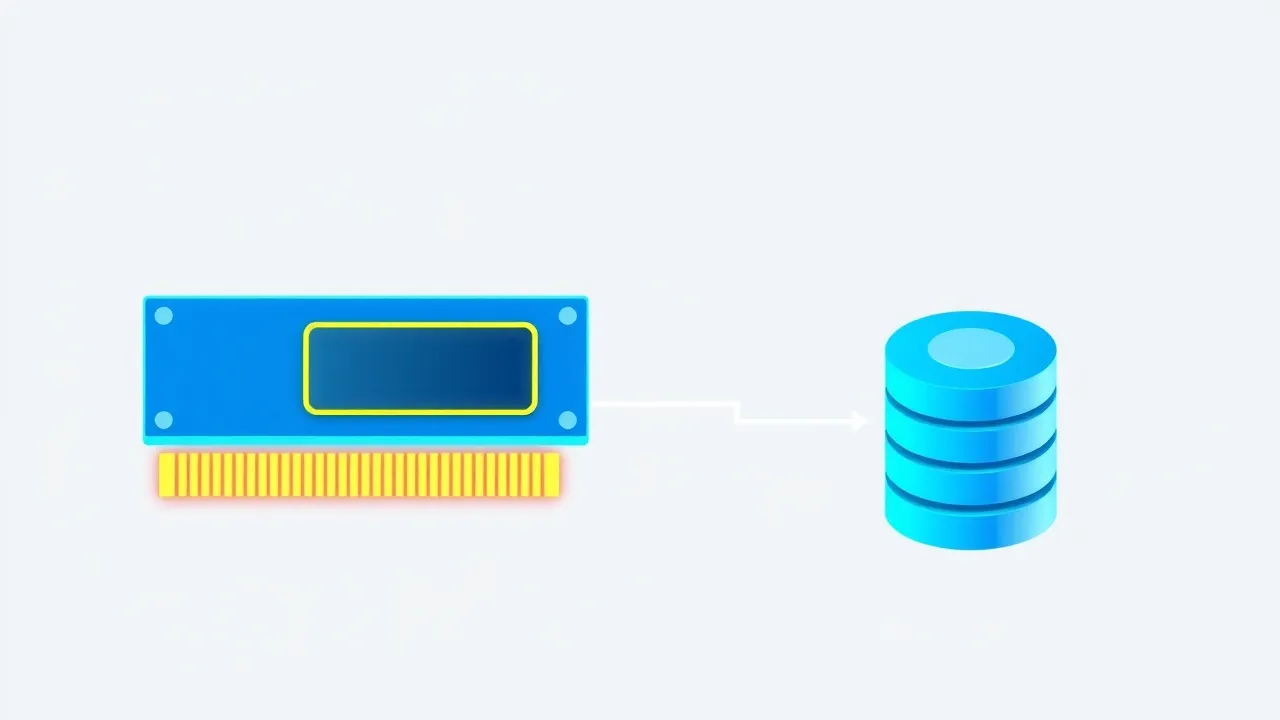
If Redis isn't available on your stack, or you're running an older LAMP setup where Memcached is already the default, you can still get the same win: cutting repeated database queries out of every WordPress page load. Memcached has been doing exactly this since long before "object cache" was a marketing term, and on a VPS it's a five-minute install away from a noticeably snappier wp-admin.
Symptom: The Database Is the Bottleneck, Not PHP
You'll usually land here after ruling out the obvious stuff. A few signs that point specifically at missing object caching, not page caching:
- The homepage loads fine (a page cache plugin is serving it as static HTML), but
/wp-admin, product pages, or anything for logged-in users is slow. - Running
SHOW FULL PROCESSLIST;in MySQL shows a burst of nearly identicalSELECTqueries againstwp_optionsorwp_postmetaon a single page load. - Query Monitor (the WordPress debug plugin) reports 300-900+ database queries per request — a well-cached page should be under 50.
topon the VPS showsmysqldpegging CPU while PHP-FPM workers sit mostly idle waiting on it.
That pattern means WordPress is re-fetching the same options, term data, and meta rows from MySQL on every single request. An object cache stores those results in memory so the second (and third, and thousandth) request skips the database entirely.
Cause: WordPress's Default Object Cache Doesn't Persist
WordPress always has an object cache — but by default it's non-persistent, meaning it only lives for the duration of a single page load and then gets thrown away. Every new visitor triggers a fresh round of database queries. Memcached (and Redis) plug in as a persistent object cache backend: a small daemon holding cached data in RAM across requests, shared by every visitor.
The two aren't functionally that different for this use case — Memcached is simpler and uses less memory overhead per key, Redis has more features like persistence-to-disk and data structures. If your VPS already ships with Memcached (common on older CentOS/AlmaLinux images or if a previous admin set it up), there's no reason to rip it out for Redis. Use what's there.
Fix: Install Memcached and Wire It Up to WordPress
1. Install the Memcached Daemon
SSH into your VPS as root or a sudo user. On AlmaLinux/Rocky/CentOS:
dnf install memcached -y
systemctl enable --now memcached
systemctl status memcached
On Ubuntu/Debian:
apt update
apt install memcached -y
systemctl enable --now memcached
By default Memcached listens on 127.0.0.1:11211 — localhost only, which is exactly what you want. Don't expose port 11211 to the public internet; it has no authentication built in.
2. Install the PHP Memcached Extension
WordPress needs the PHP extension to talk to the daemon. If you're on cPanel, use MultiPHP Manager or the "PHP Extensions" tool in WHM/cPanel to enable memcached for the domain's PHP version. On a bare VPS:
# AlmaLinux/Rocky
dnf install php-pecl-memcached -y

# Ubuntu/Debian (adjust php version, e.g. php8.2)
apt install php8.2-memcached -y

systemctl restart php-fpm
Confirm it loaded:
php -m | grep -i memcachedIf nothing prints, check php --ini to find which .ini path is active and make sure extension=memcached.so is actually being loaded by that pool, not a different PHP version.
3. Set Memory Limits Sensibly
Memcached's default memory allocation is often just 64MB, which is fine for a small site but tight for anything with real traffic. Edit the config:
-- AlmaLinux/Rocky: /etc/sysconfig/memcached
CACHESIZE="256"
OPTIONS=""

-- Ubuntu/Debian: /etc/memcached.conf
-m 256
256MB is a reasonable starting point for a mid-size WordPress or WooCommerce site on a 2-4GB VPS. Restart after editing: systemctl restart memcached.
4. Install a Memcached Object Cache Drop-In for WordPress
WordPress core doesn't talk to Memcached natively — you need a drop-in that implements wp_cache_* functions against the Memcached extension. The most common route is a plugin like Memcached Object Cache or, if you're already running W3 Total Cache or LiteSpeed Cache, both have built-in Memcached object cache support in their settings — no extra plugin needed.
If you're installing a standalone drop-in manually via WP-CLI:
wp plugin install memcached --activate
wp cache type
Or drop the object-cache.php file directly into wp-content/ (this is how most Memcached plugins install themselves — check the plugin's readme for the exact file to copy). WordPress auto-detects it; no code changes needed in wp-config.php beyond confirming WP_CACHE isn't explicitly disabled.
5. Verify It's Actually Being Used
Don't just trust that the plugin activated cleanly — confirm cache hits are happening:
echo -e "stats\r\nquit\r\n" | nc 127.0.0.1 11211 | grep -E "cmd_get|get_hits|get_misses"Load a few pages on the site, then re-run that command. get_hits should climb. If it stays at zero, the object cache drop-in isn't wired up correctly — double-check the object-cache.php file is actually in wp-content/ and not still sitting in a plugin subfolder.
Query Monitor is the other way to confirm: install it, load a logged-in admin page, and check the "Object Cache" panel — it will explicitly say whether Memcached is active and report the hit/miss ratio.
A Quick Comparison If You're Deciding Between the Two
| Factor | Memcached | Redis |
|---|---|---|
| Setup complexity | Simpler, fewer moving parts | Slightly more config options |
| Memory overhead per key | Lower | Higher (richer data types) |
| Persistence to disk | No — pure in-memory, cache empties on restart | Optional (RDB/AOF) |
| Data structures | Key-value only | Strings, hashes, lists, sets, sorted sets |
| Good fit for | Pure object caching, simple stacks | Object caching + page caching + queues on one service |
If you're setting this up from scratch with no constraints, Redis is the more common recommendation these days because it can double as a full-page cache backend too. But if Memcached is already installed, already configured, and already working — there's no performance reason to migrate just for the sake of it.
Prevention: Keep It From Silently Breaking
- Watch memory usage. If
evictionsin the stats output keeps climbing, your cache size is too small for your working set — bumpCACHESIZE/-mand restart. - Restart Memcached after PHP version changes. Switching PHP versions in cPanel's MultiPHP Manager can silently drop the extension for the new version if it wasn't enabled there too.
- Add a systemd watchdog or monitoring check. If the Memcached daemon crashes or gets OOM-killed, WordPress falls back to the database transparently — the site keeps working, just slower — so you won't get an obvious error, only a quiet performance regression. A simple cron or Netdata alert on the
memcachedservice state catches this before a customer complains. - Flush after major changes. After a theme switch, bulk import, or plugin change that touches lots of postmeta/options, flush the cache (
wp cache flushvia WP-CLI) so stale cached objects don't linger.
Frequently Asked Questions
Do I need both Memcached and a page-caching plugin?
Yes, they solve different problems. Page caching (WP Super Cache, LiteSpeed Cache, etc.) serves a static copy of the whole rendered page to anonymous visitors. Object caching speeds up everything a page cache can't touch — logged-in users, cart/checkout, wp-admin, and any dynamic query. Run both for the biggest win.
Will Memcached help a small brochure site?
Probably not much. Object caching pays off when there's meaningful dynamic load — WooCommerce, membership sites, high wp-admin usage, or heavy plugin stacks with lots of custom postmeta queries. A five-page static-ish site won't notice the difference.
Is it safe to run Memcached on a shared cPanel account?
Most shared hosting plans don't expose Memcached to individual accounts for resource-isolation reasons — it's typically a VPS/dedicated feature. If you're on shared hosting and need object caching, ask your host (or check if Redis is offered instead) rather than trying to install a system daemon yourself.
My site slowed down after enabling it — why?
Usually one of two things: the cache size is set too low and it's thrashing (constantly evicting and re-fetching), or the object-cache drop-in is misconfigured and WordPress is now hitting Memcached and falling back to MySQL on every request. Check the evictions stat and confirm get_hits is actually climbing before assuming Memcached itself is the problem.
Does this survive a server reboot?
systemctl enable memcached makes the service start on boot, but the cached data itself is pure in-memory and empties completely on every restart — that's expected and fine. WordPress just rebuilds the cache from fresh database queries as traffic comes in; there's no data loss since Memcached was never the source of truth.