You're about to run a risky command — a major PHP upgrade, a kernel update, a database migration script someone on a forum swore was "totally safe." Half your brain says just do it, the other half says what if this breaks everything. That second voice is right more often than you'd think, and the fix takes thirty seconds: take a snapshot first.
Snapshots are one of the most underused features on a VPS. Customers either don't know they exist, or they think a snapshot and a backup are the same thing (they're not, and that mix-up has cost people real data). Here's what a snapshot actually does, when to use one, and where it can't save you.
What a Snapshot Actually Is
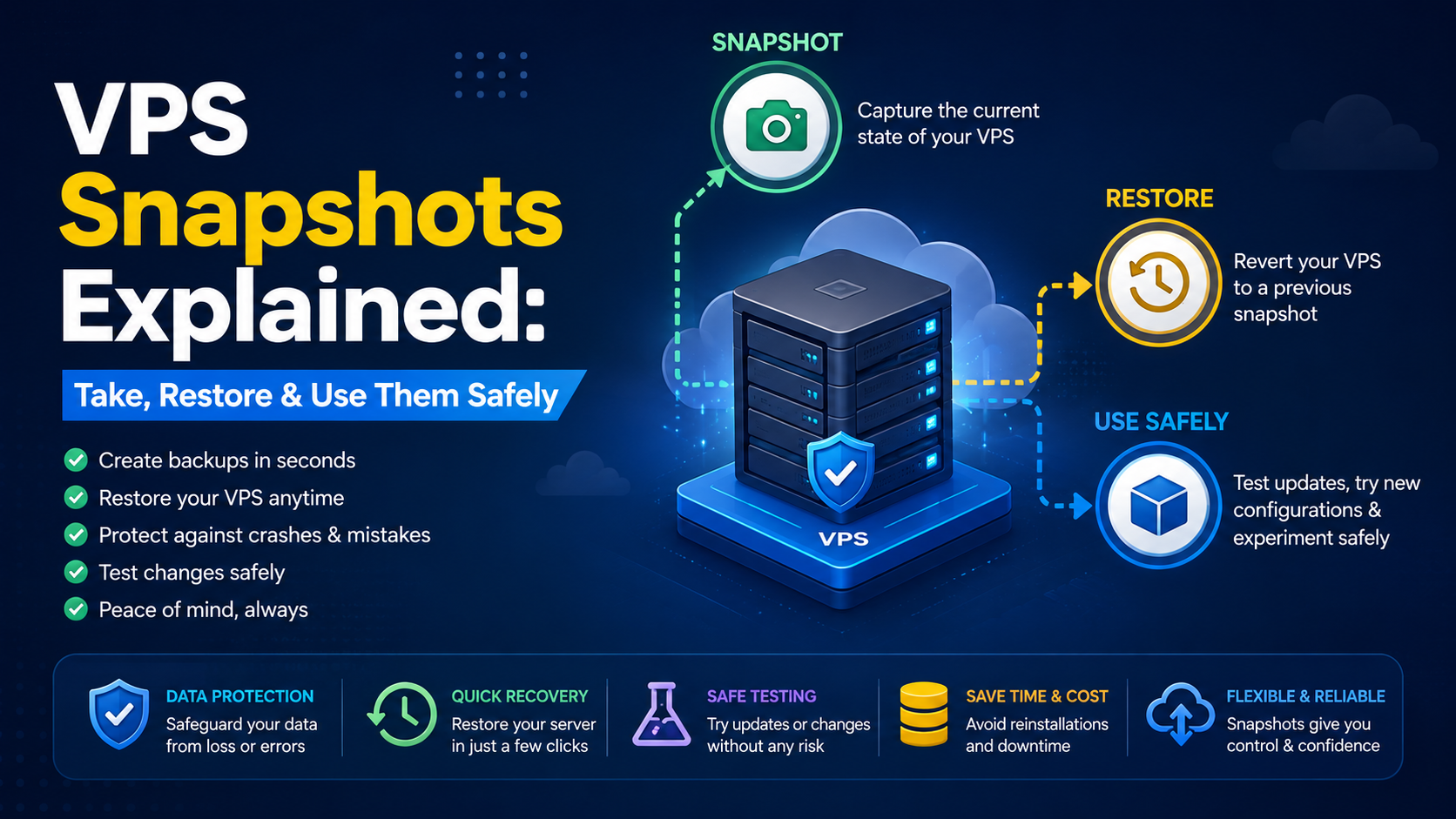
A snapshot is a point-in-time image of your entire VPS disk — operating system, installed packages, config files, databases, everything — frozen exactly as it was the moment you took it. Restoring one rolls the whole server back to that state, as if the time in between never happened.
It's not incremental in the way a proper backup tool is, and it's not portable in the way a downloaded .tar.gz backup file is. It lives on the same storage cluster as your VPS. That last part matters more than most people realize, and we'll come back to it.
Snapshot vs Backup: Know the Difference
This is the confusion that causes the most grief. They solve different problems.
| Snapshot | Backup |
|---|---|
| Whole-disk image, tied to your VPS host | Copy of files/databases, stored separately |
| Fast to take and restore (minutes) | Slower, but portable and redundant |
| Lost if the underlying storage/node fails | Survives hardware failure if stored offsite |
| Best for: short-term rollback before a risky change | Best for: disaster recovery, long-term retention |
A snapshot protects you from yourself — a bad update, a fat-fingered rm -rf, a config change that won't boot. It does not protect you from a failed disk array, a data center incident, or ransomware that also encrypts the snapshot. For that, you still need real, offsite backups. On SkyServer VPS plans, JetBackup or your own cron-driven rsync/S3 job should be running regardless of whether you also use snapshots.
When You Should Take a Snapshot
- Before OS or kernel upgrades —
apt upgrade,dnf upgrade, or a full distro version jump - Before major software changes — PHP version switch, MySQL major version upgrade, control panel install
- Before running someone else's install script — especially one-liners piped straight into
bash - Before a cpanel" class="auto-link">WordPress core or plugin update on a self-managed VPS without a staging environment
- Before firewall or SSH config changes — if you lock yourself out, a snapshot restore is your undo button
A good habit: snapshot, make the change, verify the site/app works, then delete the snapshot once you're confident. Don't let snapshots pile up — more on that below.
How to Take a Snapshot (SkyServer VPS)
- Log in to your SkyServer client area / VPS control panel
- Open the VPS you want to snapshot and find the Snapshots tab
- Click Take Snapshot, give it a name you'll actually recognize later —
pre-php8.3-upgrade-2026-07-17, notsnap1 - Wait for it to complete before starting your risky change — a snapshot taken mid-write can be inconsistent
If your VPS has heavy database write activity (a busy MySQL instance, for example), it's worth briefly pausing writes or at least avoiding taking the snapshot during a peak traffic window. The image is still crash-consistent, meaning it'll boot, but a database mid-transaction at snapshot time behaves the same as if you'd pulled the power cord — MySQL will usually recover cleanly via InnoDB crash recovery, but it's not a guarantee for every setup.
How to Restore a Snapshot
- Go to the same Snapshots tab in your VPS panel
- Select the snapshot you want and click Restore
- Confirm — this is the one destructive step, so read the warning before clicking
- The VPS will reboot into the snapshot's state; this typically takes a few minutes depending on disk size
Restoring a snapshot overwrites everything on the disk with the snapshot's state. Any file changes, new emails, new orders, or database writes made after the snapshot was taken are gone. If real user data has accumulated since you took it, don't restore blind — export the current database first if you can, so you're not losing live customer data along with the bad change.
Common Mistakes We See
- Treating snapshots as the only backup. If the node's storage has an issue, the snapshot goes with it. Keep offsite backups running too.
- Forgetting they exist and letting them stack up. Old snapshots consume disk allocation and, on some plans, count toward your storage quota. Clean up ones you no longer need.
- Taking a snapshot after the problem, not before. A snapshot of an already-broken server just preserves the broken state. Snapshot before you touch anything risky.
- Assuming a snapshot restore fixes application-level bugs. If your app was already broken before the snapshot was taken, restoring won't help — it'll just take you back to broken.
- Not verifying the restore. Always check the site loads, SSH still works, and services are running right after a restore — don't assume silence means success.
Prevention: Make Snapshots Part of Your Routine
The teams that never lose a weekend to a bad upgrade are the ones who've made "snapshot first" automatic, the same way you'd never run a migration without a database dump. Pair it with these habits:
- Name snapshots with the date and the change you're about to make
- Set a reminder to delete snapshots older than a week or two once you've confirmed the change is stable
- Keep a separate, scheduled backup (JetBackup, cron + S3, or similar) running independently of snapshots
- Test a restore at least once when nothing is wrong, so you're not learning the process for the first time during an outage
Snapshots won't stop every disaster, but they turn "I broke production and now I'm panicking" into "give me five minutes to roll back." That's a trade worth making before every risky change.
Frequently Asked Questions
How long does a VPS snapshot take?
Usually a few seconds to a couple of minutes to create, depending on disk size and current I/O load. Restoring takes a bit longer since the full disk state has to be written back and the server rebooted.
Do snapshots slow down my VPS?
A single snapshot has minimal impact. Keeping many snapshots around, especially on a busy server with lots of disk changes since each one was taken, can add some storage overhead. Delete snapshots you no longer need.
Can I schedule automatic snapshots?
On most SkyServer VPS plans you can take snapshots on demand; check your specific plan's control panel for scheduled snapshot options. Either way, scheduled snapshots are not a replacement for a proper offsite backup schedule.
What happens to my snapshot if I resize or rebuild the VPS?
Rebuilding the OS typically wipes existing snapshots along with the disk. Always confirm snapshot retention with support before a rebuild if you need to keep one around.
Can I download a snapshot to my own computer?
No — snapshots live on SkyServer's storage infrastructure tied to your VPS and aren't downloadable as a portable file. For a copy you can store elsewhere, use a full backup export (JetBackup archive, database dump, or file-level backup) instead.