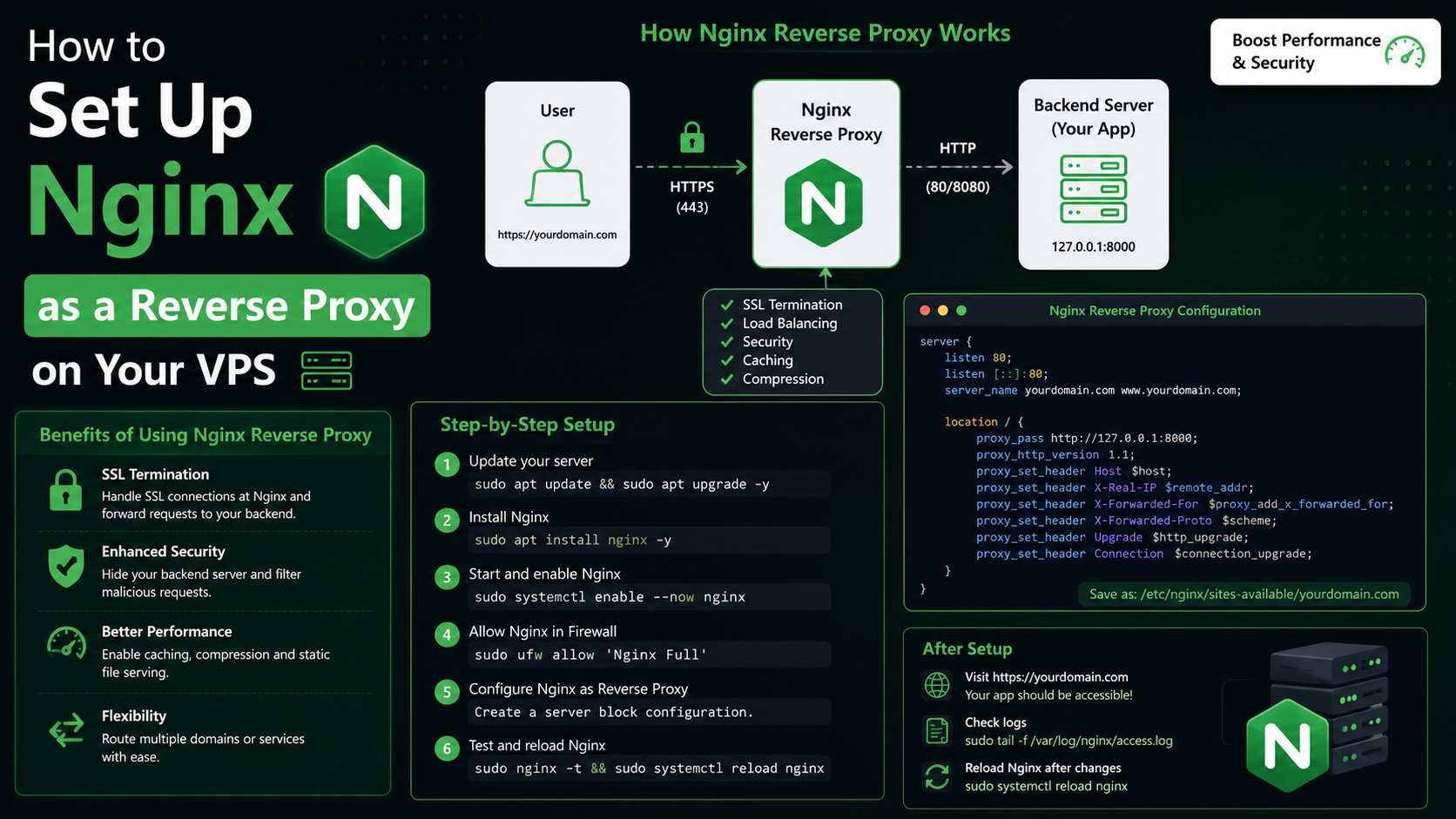
You've got a Node.js app running fine on port 3000, or maybe three different sites sharing one VPS, and now you need them all reachable on port 80/443 under clean domain names with SSL. That's exactly what a reverse proxy is for. Nginx is the tool almost everyone reaches for, and setting it up properly takes about fifteen minutes once you know the pattern. Here's how to do it without the trial-and-error.
What a Reverse Proxy Actually Does
A reverse proxy sits in front of your application and forwards incoming requests to it, then sends the response back to the visitor. The visitor only ever talks to Nginx on port 80 or 443 — they never see or connect to port 3000, 8080, or whatever your app is actually listening on. This lets you run several apps on one server (each on its own internal port), terminate SSL in one place, and add caching, rate limiting, or compression without touching your app code.
Symptom: App Works on localhost:3000 But Not on Your Domain
This is the ticket we see most often. The developer SSHs in, runs node server.js or pm2 start app.js, confirms it works with curl localhost:3000, then opens the domain in a browser and gets nothing — a connection refused, a blank page, or a default Nginx or Apache landing page instead of their app.
Cause
Your app is bound to an internal port that isn't exposed to the internet, and nothing is listening on port 80/443 to hand traffic off to it. Either Nginx isn't installed, or it's installed but still serving its default site block instead of a proxy config pointed at your app.
Fix: Install and Configure Nginx as a Reverse Proxy
Install Nginx if it isn't already there:
sudo apt update
sudo apt install nginx -y
Create a new server block for your site instead of editing the default one:
sudo nano /etc/nginx/sites-available/myapp.confPaste in a config like this, swapping in your domain and the port your app actually listens on:
server {
    listen 80;
    server_name myapp.com www.myapp.com;

    location / {
        proxy_pass http://127.0.0.1:3000;
        proxy_http_version 1.1;
        proxy_set_header Upgrade $http_upgrade;
        proxy_set_header Connection 'upgrade';
        proxy_set_header Host $host;
        proxy_set_header X-Real-IP $remote_addr;
        proxy_set_header X-Forwarded-For $proxy_add_x_forwarded_for;
        proxy_set_header X-Forwarded-Proto $scheme;
        proxy_cache_bypass $http_upgrade;
    }
}
The Upgrade and Connection headers matter if your app uses WebSockets (Socket.io, live chat, real-time dashboards) — skip them and those connections will fail silently. X-Forwarded-For and X-Forwarded-Proto let your app know the visitor's real IP and whether the original request was HTTPS, which matters for logging and for any redirect logic in your app.
Enable the site and test the config before reloading:
sudo ln -s /etc/nginx/sites-available/myapp.conf /etc/nginx/sites-enabled/
sudo nginx -t
sudo systemctl reload nginx
If nginx -t reports the syntax is ok and the test is successful, you're clear to reload. If it errors, it will tell you the exact line number — almost always a missing semicolon or an unclosed brace.
Adding SSL with Certbot
Once the plain HTTP proxy is working, layer HTTPS on top with Let's Encrypt:
sudo apt install certbot python3-certbot-nginx -y
sudo certbot --nginx -d myapp.com -d www.myapp.com
Certbot edits your server block automatically, adds the certificate paths, and sets up an HTTP-to-HTTPS redirect. It also installs a renewal timer, so certificates won't quietly expire — you can confirm it with sudo certbot renew --dry-run.
Common Errors and What They Actually Mean
| Error | What it means | What to check |
|---|---|---|
| 502 Bad Gateway | Nginx is up but the app behind it isn't responding | Is the app process actually running? Check with pm2 list or systemctl status yourapp, and confirm the port in proxy_pass matches what the app is bound to |
| 504 Gateway Timeout | The app is running but took too long to respond | Slow database query or external API call — check app logs; raise proxy_read_timeout if the delay is expected |
| connection refused | Nothing is listening on the proxied port at all | App crashed or was never started — check the process manager |
| SSL handshake failure after Certbot | Certificate paths in the config don't match reality | Re-run sudo certbot --nginx or check /etc/letsencrypt/live/ for the actual cert files |
A 502 almost always traces back to the app itself, not Nginx. Before touching the Nginx config, run curl http://127.0.0.1:3000 directly on the server. If that fails too, the problem is your app, not the proxy.
Prevention: Keep the Proxy Boring
- Run your app under a process manager (
pm2,systemd, orsupervisor) so it restarts automatically on crash or reboot — a manually-startednode server.jsin a terminal session dies the moment that session closes. - Keep app logs and Nginx logs (
/var/log/nginx/error.log) open in separate terminals while testing a new proxy config — the error log tells you within seconds whether the problem is upstream (app) or in Nginx itself. - Set
client_max_body_sizein your server block if visitors will upload files larger than 1MB — Nginx's default limit will silently reject bigger uploads with a 413 error. - Never edit the default Nginx site for a real app — always create a dedicated file under
sites-available. It keeps configs easy to disable individually and easy to diff when something breaks.
Frequently Asked Questions
Can I run Nginx as a reverse proxy in front of Apache/cPanel instead of a Node app?
Yes. The same proxy_pass pattern works for any backend — just point it at the port Apache is listening on internally. This setup is common when you want Nginx handling static files and SSL while Apache still processes PHP behind it.
Why does my WebSocket connection keep dropping through the proxy?
Almost always missing proxy_set_header Upgrade $http_upgrade; and proxy_set_header Connection 'upgrade'; in the location block. Without those two lines, Nginx treats the WebSocket handshake as a regular HTTP request and it fails after the initial connection.
Do I need a separate server block for each app on the same VPS?
Yes — one file per domain (or subdomain) under /etc/nginx/sites-available, each with its own server_name and proxy_pass pointing at that app's unique internal port. Nginx routes based on the Host header, so as long as each app listens on a different port, they can coexist on one VPS with no conflicts.
How do I redirect all HTTP traffic to HTTPS?
Certbot does this automatically when you run certbot --nginx and choose the redirect option. If you need to do it manually, add a second server block listening on port 80 that does nothing but return 301 https://$host$request_uri;.
My config passed nginx -t but the site still shows a 502. What now?
A passing syntax test only confirms the config file is well-formed — it says nothing about whether your app is actually reachable. Check that the app is running, listening on the exact port referenced in proxy_pass, and bound to 127.0.0.1 or 0.0.0.0 rather than a different interface.