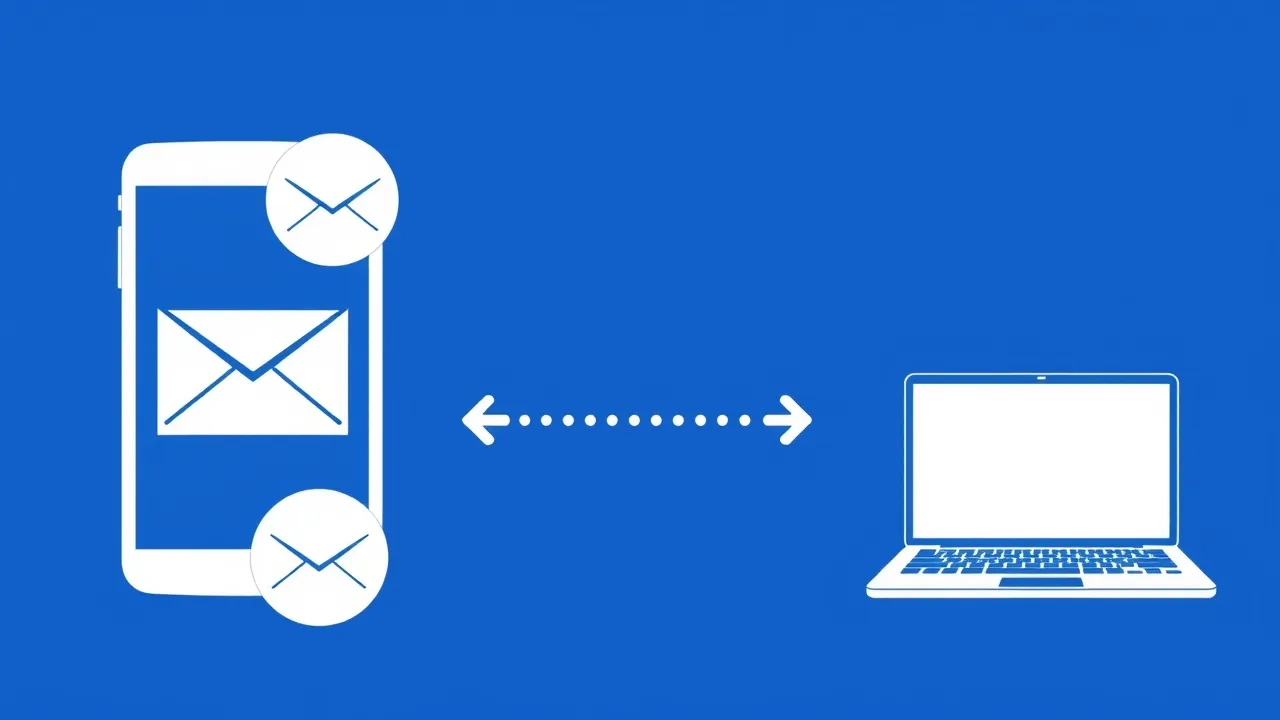
Here's a ticket we see every few weeks: a customer sends an important email from their phone on the way to a meeting, then opens Outlook on their laptop that afternoon and the message is nowhere in the Sent folder. Nothing bounced, the recipient got it fine, but as far as the desktop client is concerned it never happened. Nine times out of ten, this isn't a bug in cpanel" class="auto-link">wordpress-missing-a-temporary-folder-upload-error" class="auto-link">cPanel or a lost email — it's a mail client pointed at the wrong folder.
Why Sent Mail Goes Missing on Other Devices
IMAP is designed to keep every folder — Inbox, Sent, Drafts, Trash, Junk — stored on the server and mirrored identically on every device that connects. When it's set up right, sending from your phone and checking webmail five minutes later shows the same Sent folder, same message, same timestamp. When it's set up wrong, one of two things usually happened:
- The account is on POP3, not IMAP. POP3 only ever pulls the Inbox down to a single device. It has no concept of a shared Sent folder at all, so sent copies just live wherever the app that sent them decided to keep them — locally, on that one device.
- The account is on IMAP, but the client is saving Sent mail locally instead of to the server folder. This is the far more common case. Outlook, Apple Mail, and Thunderbird all have a setting for where "sent" copies get filed, and by default some of them default to a local "On My Computer" or "On My iPhone" folder instead of the server's
INBOX.Sentfolder.
Add a third culprit for anyone who's used more than one mail app on the same mailbox over the years: cPanel's IMAP server exposes special folders as INBOX.Sent, INBOX.Drafts, INBOX.Trash, and INBOX.Junk. If a client was configured manually years ago and never had its "special folder" mapping set, it may have created its own top-level Sent Items folder instead of using the server's one. Now you effectively have two Sent folders sitting side by side, and only one of them is visible everywhere.
Step 1: Confirm You're Actually on IMAP
Before touching folder settings, rule out the POP3 case — there's no folder mapping to fix if the protocol itself doesn't sync folders.
- Outlook: File > Account Settings > Account Settings > double-click the account > check the "Account Type" field.
- Apple Mail: Settings > Mail > Accounts > tap the account > look at the incoming server type.
- Thunderbird: Account Settings > Server Settings > "Server Type" at the top.
If it says POP3, that's your root cause. Delete the account and re-add it as IMAP using the settings from cPanel's Email Accounts page — click "Connect Devices" next to the mailbox and use the auto-generated IMAP settings, or the manual ones below.
| Setting | Value |
|---|---|
| Incoming server | mail.yourdomain.com (or the hostname shown in cPanel > Connect Devices) |
| IMAP port | 993 (SSL/TLS) |
| Outgoing server | Same hostname, port 465 (SSL/TLS) |
| Username | Full email address |
Switching a mailbox from POP3 to IMAP won't move history automatically — anything already downloaded via POP3 stays local to that device. Going forward, though, everything will sync correctly.
Step 2: Fix the Sent Folder Mapping in Outlook
This is the single most common cause we see. Outlook lets you choose where it saves a copy of anything you send, and it doesn't always default to the IMAP server's Sent folder.
- File > Account Settings > Account Settings.
- Double-click the mailbox, then click More Settings.
- Go to the Folders tab.
- Under "Sent Items", pick "Save sent items in the following folder on the server" and select the account's
Sentfolder (it'll usually show up nested under the account root, not under a local Personal Folders tree). - Click OK, close the dialog, restart Outlook.
Separately, check File > Options > Mail > and confirm "Save copies of messages in the Sent Items folder" is ticked. If it's off, Outlook won't save a sent copy anywhere — server or local.
Step 3: Fix It on iPhone/iPad and Mac (Apple Mail)
Apple Mail is the other repeat offender, mostly because it silently creates an "On My iPhone" mailbox the first time an account misbehaves, and users don't notice their sent mail quietly moved there.
- iOS: Settings > Mail > Accounts > tap the account > Account > Advanced.
- Under "Sent Mailbox", make sure it points to the server's
Sentfolder, not "On My iPhone". - On Mac: Mail > Settings > Accounts > select the account > Mailbox Behaviors > Sent, and confirm "Store sent messages on the server" is checked.
If you see two Sent folders in the sidebar — one under the account, one under "On My iPhone" — that confirms the split. Drag the local messages into the server Sent folder to merge history, then fix the setting so it doesn't happen again.
Step 4: Fix It in Thunderbird
- Account Settings > select the account > Copies & Folders.
- Under "When sending messages, automatically:", choose "Place a copy in" and pick Sent under that specific account (not "Local Folders").
Thunderbird almost always gets this right on a fresh IMAP setup, but it's worth checking after any account migration or profile import, since profile imports sometimes carry over a stale local-folder pointer.
Step 5: Verify From cPanel Webmail
Once you've adjusted the client, send a short test email and confirm it lands in the same Sent folder when you check cPanel Webmail (Roundcube or Horde) directly. Webmail always reads straight from the server, so if a message shows there but not in your desktop client, the client-side mapping is still wrong. If it doesn't show in Webmail either, the message never made it to the IMAP Sent folder at all, and you're back to checking the client's save-copy setting.
Prevention: Standardize Setup When Onboarding a New Device
The cleanest fix is not needing this fix. A few habits save a lot of "where did my email go" tickets down the line:
- Always add mailboxes as IMAP, never POP3, unless there's a specific reason for a single-device archive.
- Use cPanel's Connect Devices auto-configuration (Email Accounts > click the mailbox > Connect Devices) instead of typing server settings by hand — it pre-fills the correct special-folder mapping for most clients.
- After adding an account on any new phone, tablet, or laptop, send one test email immediately and confirm it appears in Sent everywhere else. It takes thirty seconds and catches the problem before it becomes "I lost three months of sent mail."
- If a mailbox is shared by more than one person or device, standardize on one client type where possible — mixing Outlook, Apple Mail, and a webmail app on the same account is where most of these mismatches originate.
If you manage several mailboxes on the same domain, it's worth doing a five-minute audit across all of them after any bulk client rollout (new company laptops, a phone upgrade round, etc.) rather than waiting for someone to notice a missing email mid-conversation.
Frequently Asked Questions
Can I recover sent emails that were saved locally on the wrong device?
Yes, as long as that device still has them. Open the local Sent folder (often labeled "On My iPhone" or under Outlook's Personal Folders), select the messages, and drag or copy them into the account's server Sent folder. Once they're there, they'll sync to every other device normally.
Why does this only happen on some devices and not others?
Each mail app stores its own folder-mapping preference locally, so it's entirely possible for your phone to be configured correctly while your laptop's Outlook profile has a stale local mapping from years ago, or vice versa. Fixing one device doesn't fix the others — each needs to be checked individually.
Does switching from POP3 to IMAP delete my existing mail?
No, but it also won't automatically merge it. Mail already downloaded via POP3 stays on that device in its old local folders. You can manually copy anything important into the new IMAP account's folders after switching, but going forward everything will sync correctly across devices without any manual copying.
My Sent folder shows different message counts in Webmail versus Outlook. Which one is correct?
Webmail (Roundcube/Horde) reads directly from the server, so it's always the source of truth. If Outlook's count is lower, it either hasn't fully synced yet (check for a sync-in-progress indicator) or it's still filing new sent copies to a local folder rather than the server one — recheck the Folders setting in Step 2.
I use multiple email clients on the same account. Do I need to fix the Sent mapping in each one?
Yes. The setting lives in each individual client's account configuration, not on the server. cPanel and the IMAP server don't control where a client chooses to save outgoing copies — that decision is entirely client-side, so it has to be corrected everywhere the account is set up.